
Fractal Expression

Fractal Expression is a IFS generator that creates fractals by iterating Source Images.
The program let you choose a image and it iterates it over the fractal, by applying a set of rules every iteration.
The resulting fractal is build out of transformed copies the original image.
Main Panel
The Main Panel has three tabs:
Fractal Tab
This panel is for control the fractal and its properties.
Formula Browser

This browser is used for selecting the formula type. As for version v0.2, there are 10 possible formulas (this will be expanded later).
Variation Browser

The variation browser is used for selecting formula variations. Not all combinations of formulas and variations produces fractal results.
The Sides slider

This control determines the number of sides that the fractal will have.
The Iterations slider

This slider is used for setting the iteration depth. the maximum value is 255.
Save and Load Fractal buttons

This is for saving and restoring the fractal parameters of expression. It's important to note that the actual Source Image data, is not included. The parameters are stored as simple text files.
The Slow Render option

This control is used for lowering the CPU requirements of Fractal Expression.
Control Tab
Fractal Parameters control

These controls are for modifying the parameters of the fractal. The fractal type determines the visible number of controls (with a maximum of four controls).
Iteration Fog control

This control changes the brightness of the iterated fractal images. It has four options:
- None: The brightness of the image don't changes as the iteration counts increases.
- Linear: The brightness of the image decays linearly with the iteration counts.
- Exp. 1: The brightness of the image decays exponentially with the iteration count.
- Exp. 2: The brightness of the image almost remain the same , until the last iterations, then they decays exponentially.
About Tab
This panel shows the About information and a small help guide about the controls.
Image Preview Panel

Mouse Controls
When the mouse is over the Preview panel, the controls are the following:
- Left Mouse button: Used for panning the fractal image.
- Mouse Wheel: Performs Zooming.
If the Source Control option is enabled:
- Left Mouse button: Moves the Source Image.
- Mouse Wheel: Scales the Source Image.
- Left Mouse Button while rotating the Mouse Wheel: Rotates the Source Image.
Control Panel

New Fractal

This button generates a new random fractal from the selected Formula in the formula browser.
Zoom and Pan controls
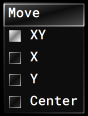
This control allows or restrict the panning of both the fractal and the source image It has four options:
- XY: Panning is allowed in both X and Y axis.
- X: Panning is only allowed in the X direction.
- Y: Panning is only allowed in the X direction.
- Center: Centers the fractal. If the Control Source option is enabled, the Source Image is centered instead.

Performs zooming. If the Control Source option is enabled, it only changes the scale of the Source Image.
Render Resolution

This is for changing the resolution of the final render. As v0.2, the maximum resolution is 8192x8192.
Source Image

This button is for importing the Source Image. The supported formats are PNG, BMP, GIF and JPG.

Is important to note that Color 0 (black) is considered transparent. Future releases will also use the alpha channel of the image.
Also, the source image can have any aspect ratio and supports any resolution that the memory of the system can hold.
Export Render

This button exports the rendered fractal in using the PNG format.
It's important to note: Since Fractal Expression is a IFS iterator, the quality of the resulting renders greatly depends on the render time.
Help and Quit

The Help button opens the Expression Webpage.
The Quit Button exits the program.